From signing up to preparing for an opponent, every step has an annotated screenshot. The numbers in yellow circles match the notes below each picture.
♞ Demo data: NM Sibo Wu's own games, with Magnus Carlsen as the opponent.
Chapter 1
Get started in three minutes
From sign-up to your first diagnosis takes about three minutes. The engine analysis runs on our servers, so you can leave the page while it works.
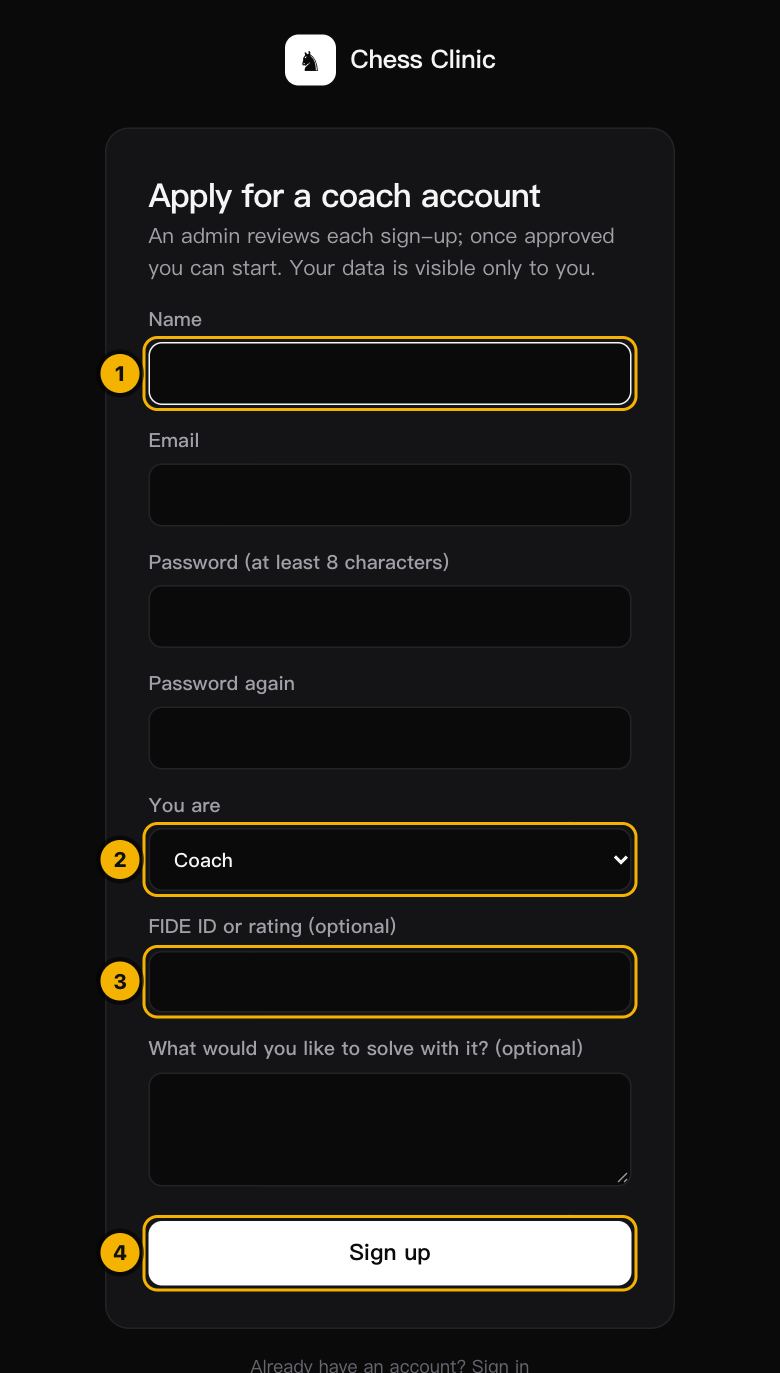
1Create an account
Click Sign up free on the home page and fill in the form. New accounts are reviewed first and usually approved within a day. While you wait, signing in shows the review status, and you can message the admin from there.
1Your name, email and password (at least 8 characters), entered twice.
2Who you are: professional player, coach, club or academy, parent, or other.
3Optionally, your FIDE ID or rating, and what you most want to solve.
4Submit.
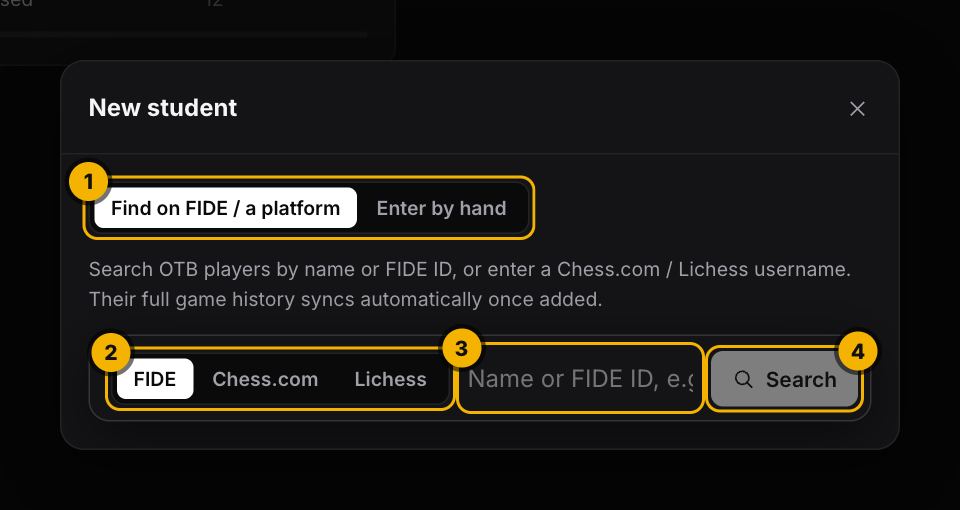
2Add your first student
Open Students and click New student. Look up an over-the-board player by FIDE name or ID, or enter a Chess.com / Lichess username. The player's whole game history is backfilled automatically; a few thousand games take about 100 seconds.
1Find on FIDE / a platform. For a student with no accounts, choose Enter by hand to start an empty profile.
2Pick the source: FIDE, Chess.com or Lichess.
3Enter a name, FIDE ID or username. A FIDE name lists matches to choose from; a numeric FIDE ID goes straight in.
4Find and add.
Several accounts of the same person merge into one profile; you can link more from the profile page later.
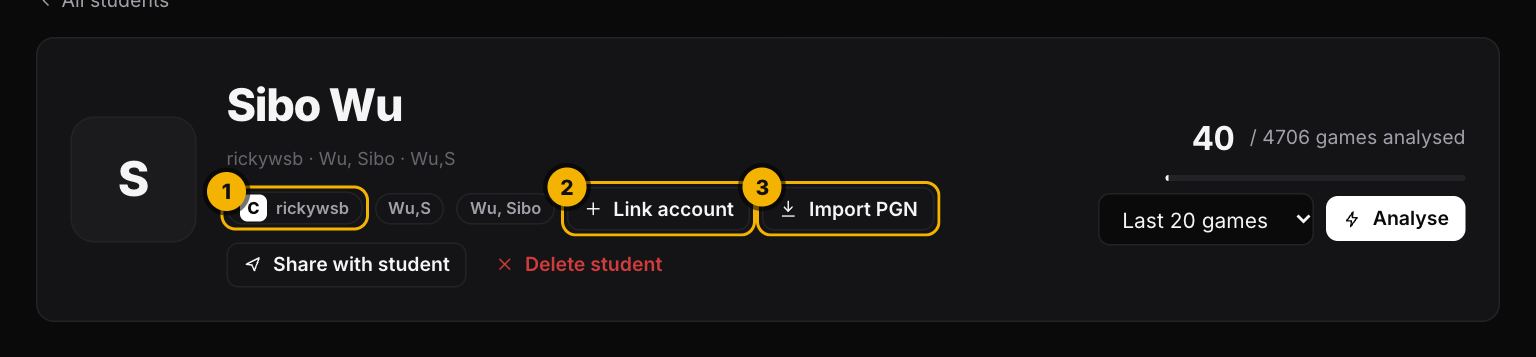
3Link more accounts
The top of the profile lists the student's linked accounts and aliases. Online accounts and FIDE over-the-board games are counted together.
1Linked accounts. Different spellings in broadcasts (such as Wu, Sibo and Wu,S) are kept as aliases of the same player.
2Link account: add another Chess.com or Lichess account, or a FIDE ID.
3Import PGN: upload your own game files, for example events that were not broadcast.
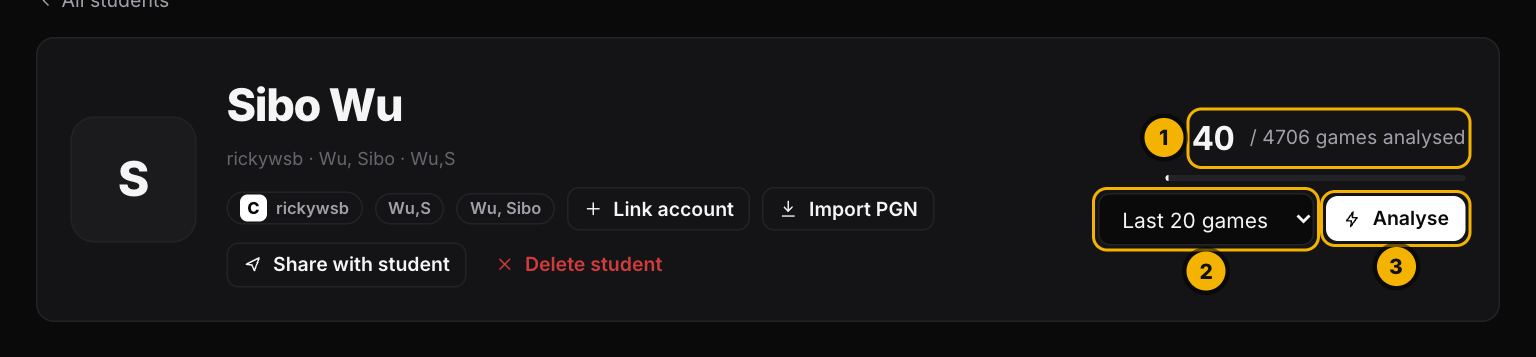
4Run the engine analysis
The right side shows how many games have been analysed. Choose a range and click Analyse: Stockfish on our servers checks every move of every game. It runs in the background, so you can close the page and come back to the progress and results.
1Analysed games out of the total.
2Range: the last 20, 40 or 100 games.
3Start. You can stop at any time while it runs.
5Read the diagnosis
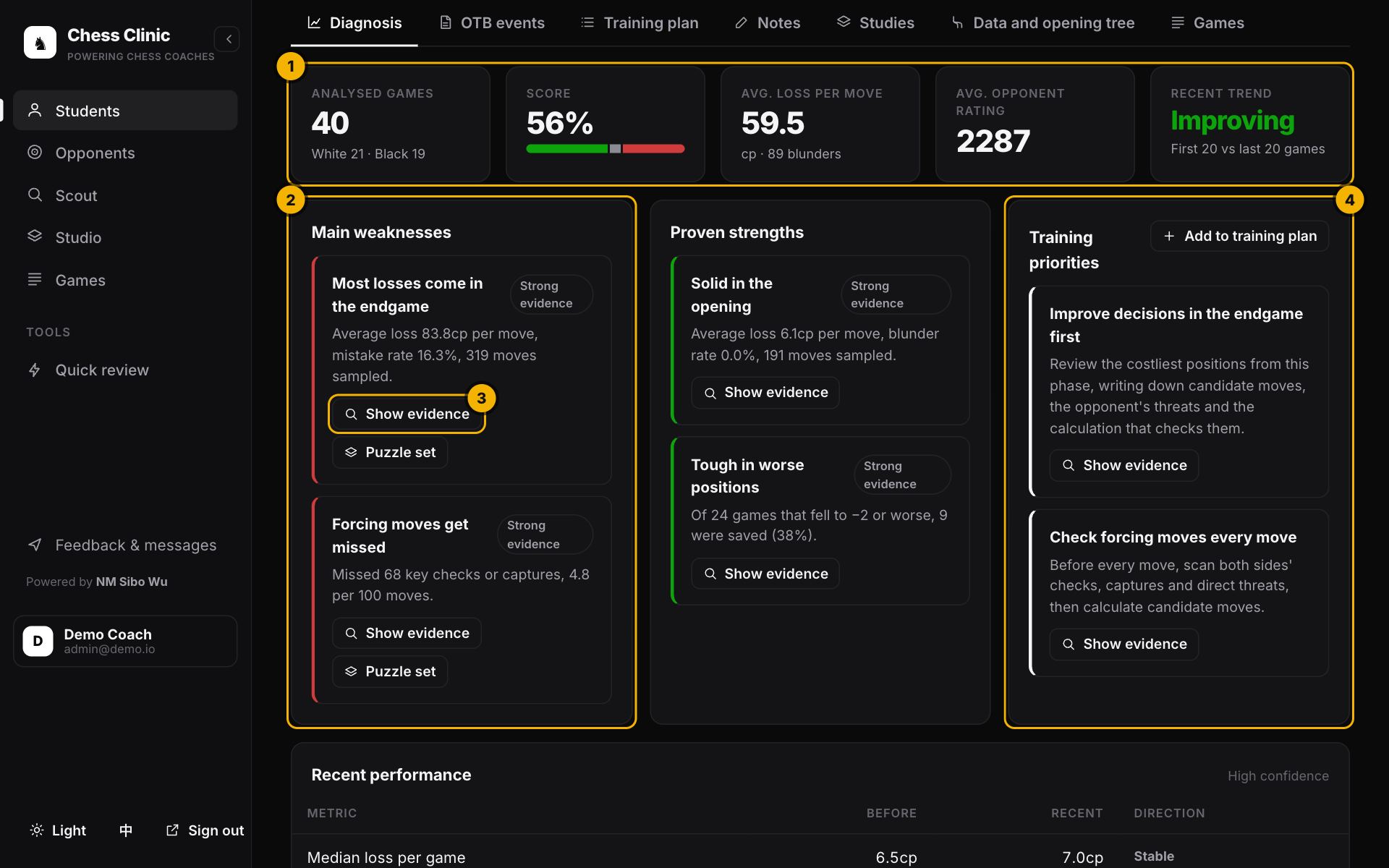
When the analysis is done, the Diagnosis tab shows an overview and findings. Each finding states its evidence level and sample size; anything below the threshold is left out.
1Overview: games analysed, score, average loss per move, average opponent rating, and the recent trend from comparing earlier and later games.
2Main weaknesses: where the losses concentrate, strongest evidence first.
3Show evidence opens the real positions behind a finding (more in the next chapter).
4Training priorities: suggestions based on the weaknesses, which you can add to the training plan in one click.
Chapter 2
Student profiles
Every student has one profile holding the diagnosis, OTB events, training plan, notes, studies, statistics and every game. This chapter walks through it with the demo student, Sibo Wu, and his 4,706 games.
1The student list
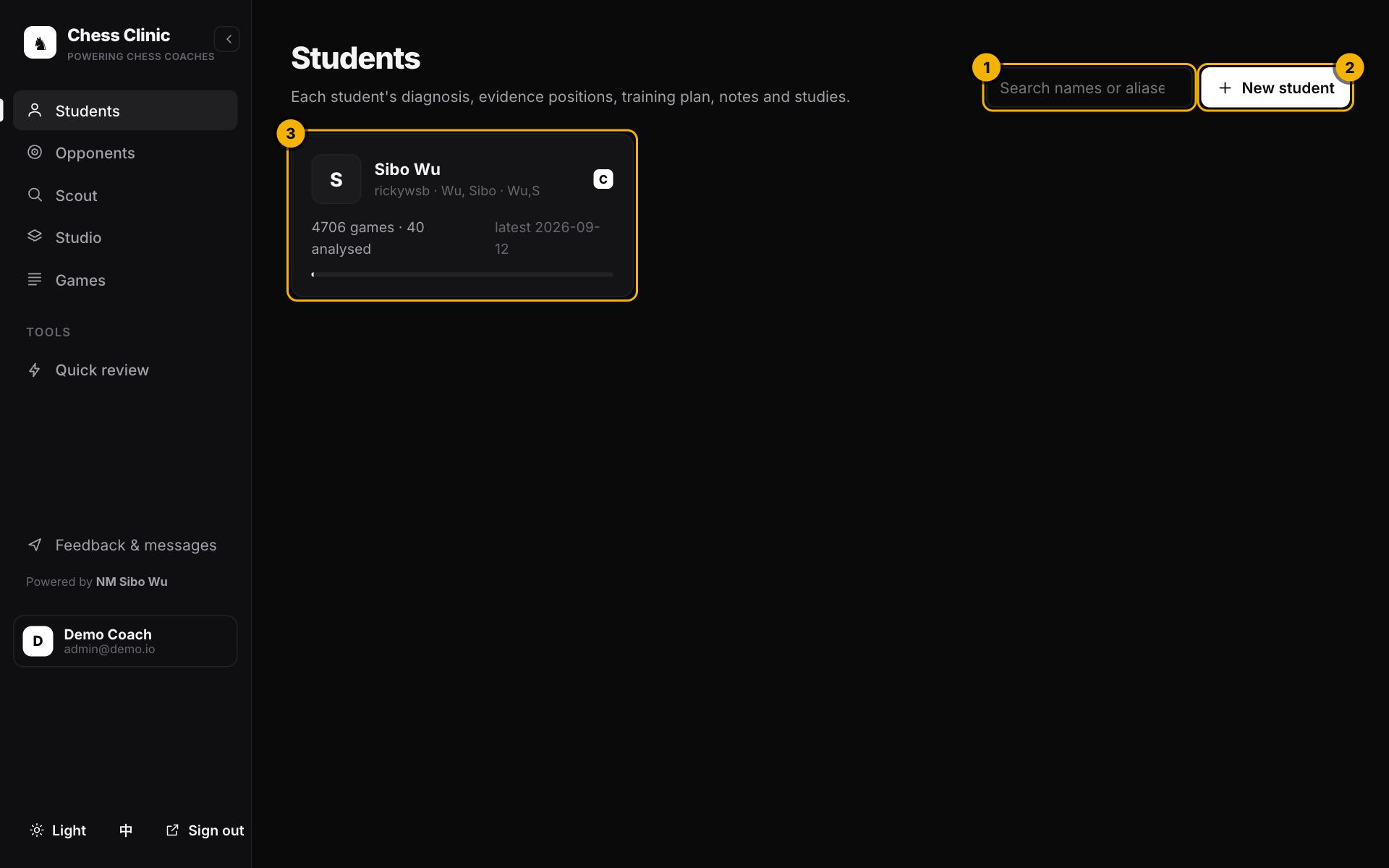
Students lists everyone you coach. Opponents you prepare against live on their own Opponents page, so the two never mix.
1Search by name or alias.
2Add a student.
3Student card: total games, games analysed and the date of the latest game. The bar shows analysis coverage.
2The seven tabs
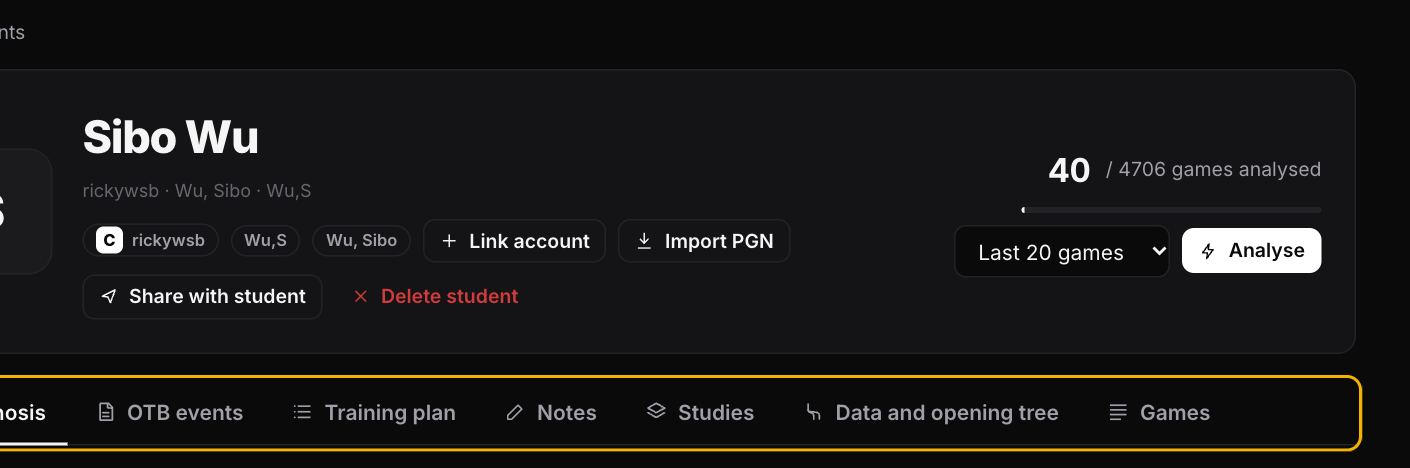
Diagnosis: engine findings and evidence. OTB events: the FIDE profile and a rating for every event. Training plan: a task board. Notes: your private observations, never shown to the student. Studies: this student's Studio studies. Data and opening tree: rating history and opening statistics. Games: every game.
1Click a tab to switch.
3Evidence positions
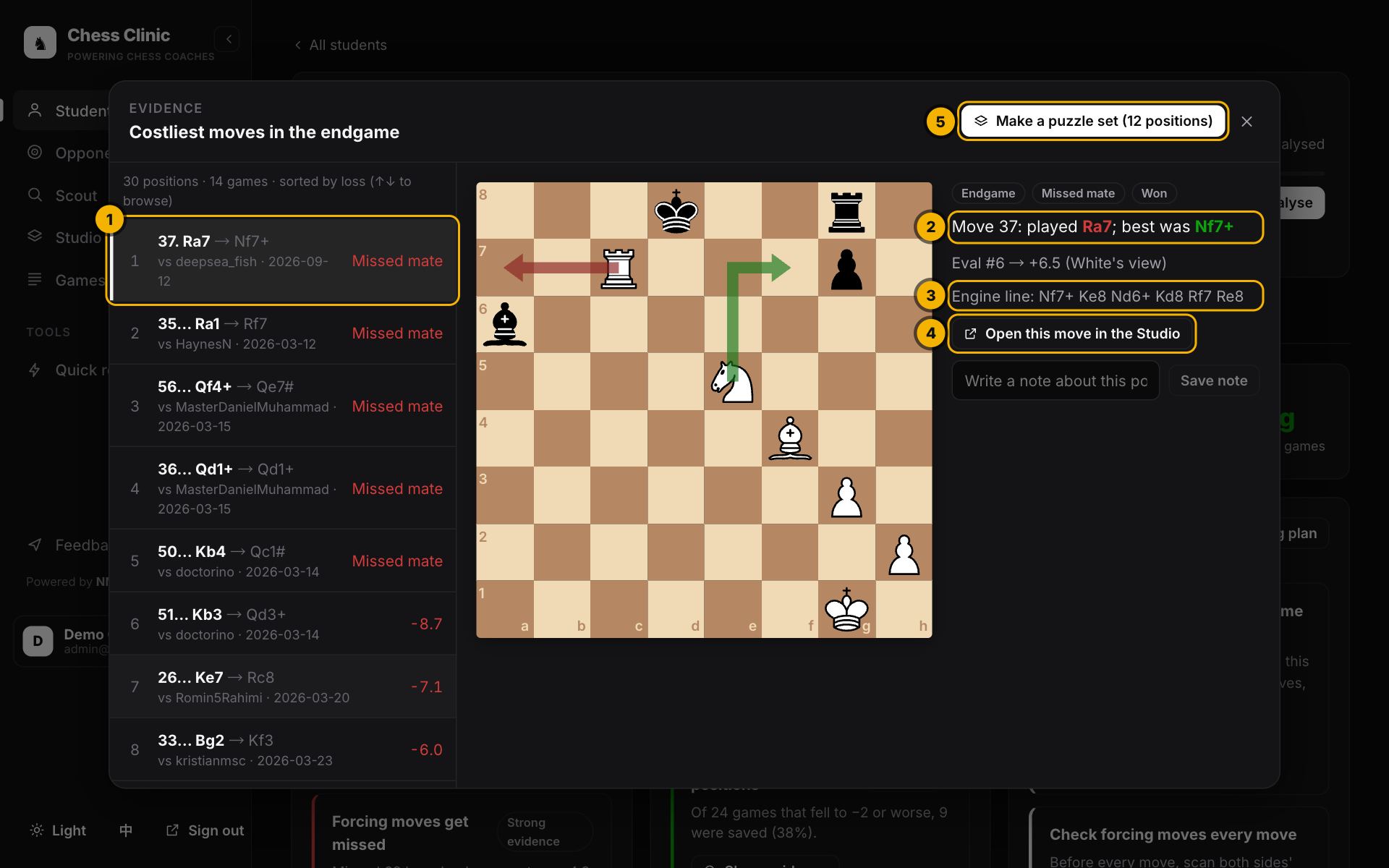
Click any Show evidence in the diagnosis to open every position behind that finding, largest loss first; switch with the ↑↓ keys. Findings are computed from these positions, not guessed by an AI.
1The positions: move played → best move, with the opponent and date.
2This move: the move played (red) and the best move (green), drawn as arrows on the board, with the evaluation swing.
3The engine line.
4Open the move in the Studio to dig deeper, or leave a note on this position.
5Turn these positions into a puzzle set: answers and engine stay hidden until the student finds the best move.
4By phase and by theme
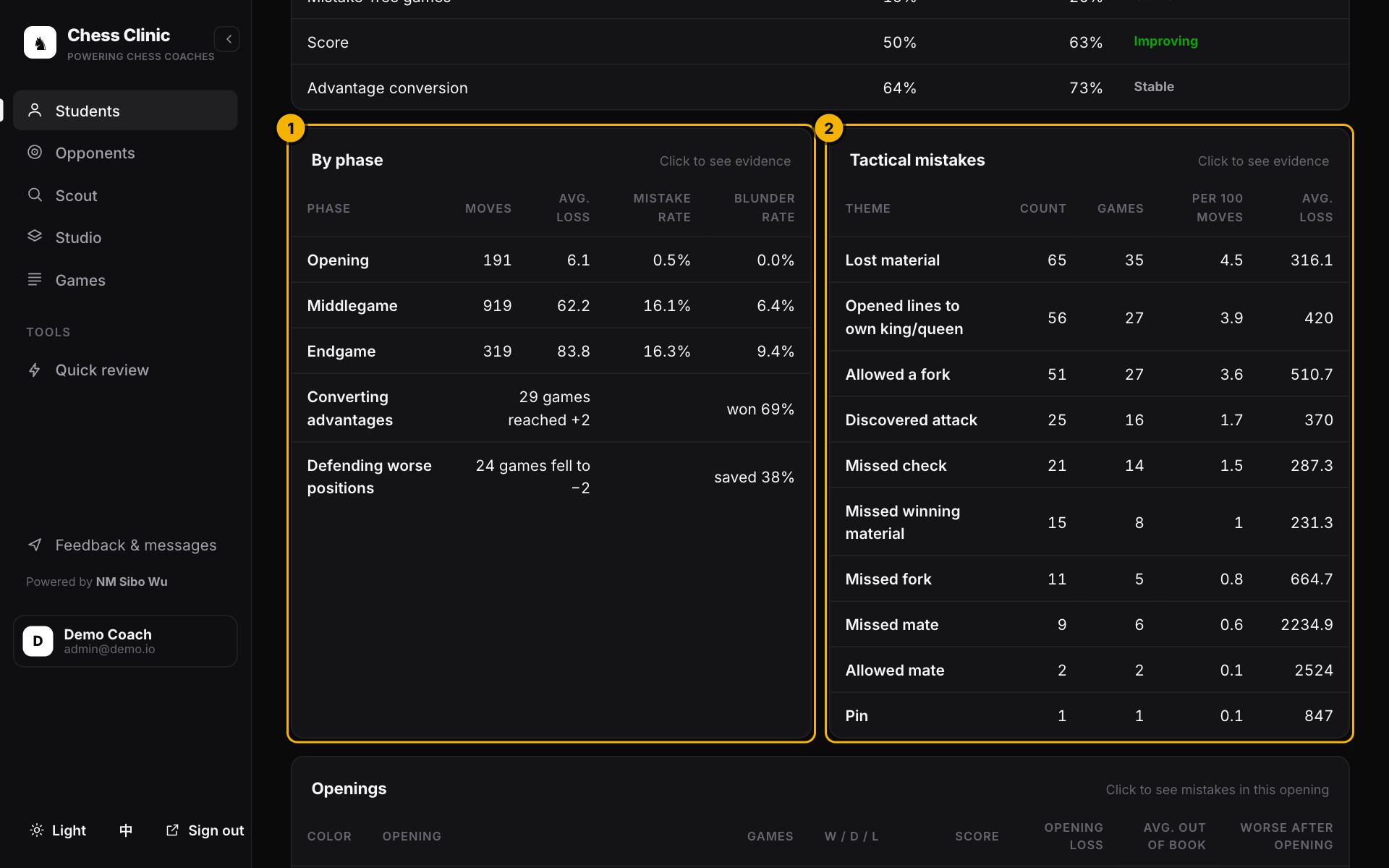
Further down are detailed tables: recent versus earlier games, phases, tactical mistakes, openings, endgame types and representative blunders. Every row opens its evidence.
1By phase: average loss and error rate in the opening, middlegame and endgame, plus converting advantages and defending worse positions.
2Tactical mistakes: missed mates, forks, material wins and more, most frequent first.
5Training plan
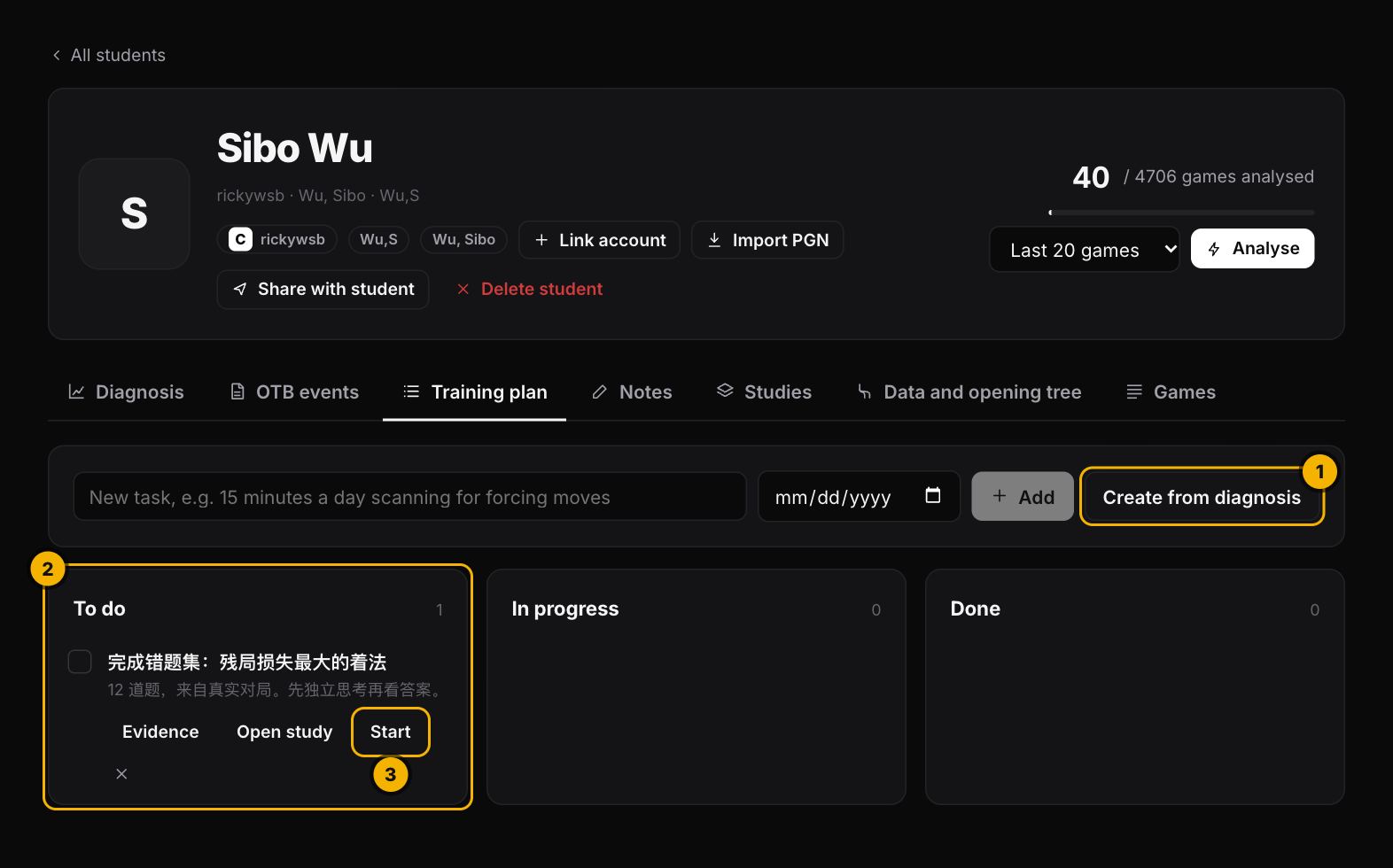
The training plan is a three-column board. Add tasks by hand, or click Create from diagnosis to generate them from the training priorities; puzzle sets you create show up here as tasks too.
1Create tasks from the diagnosis.
2To do, in progress and done.
3Start a task. Tasks with evidence or a study open straight from here.
6OTB events
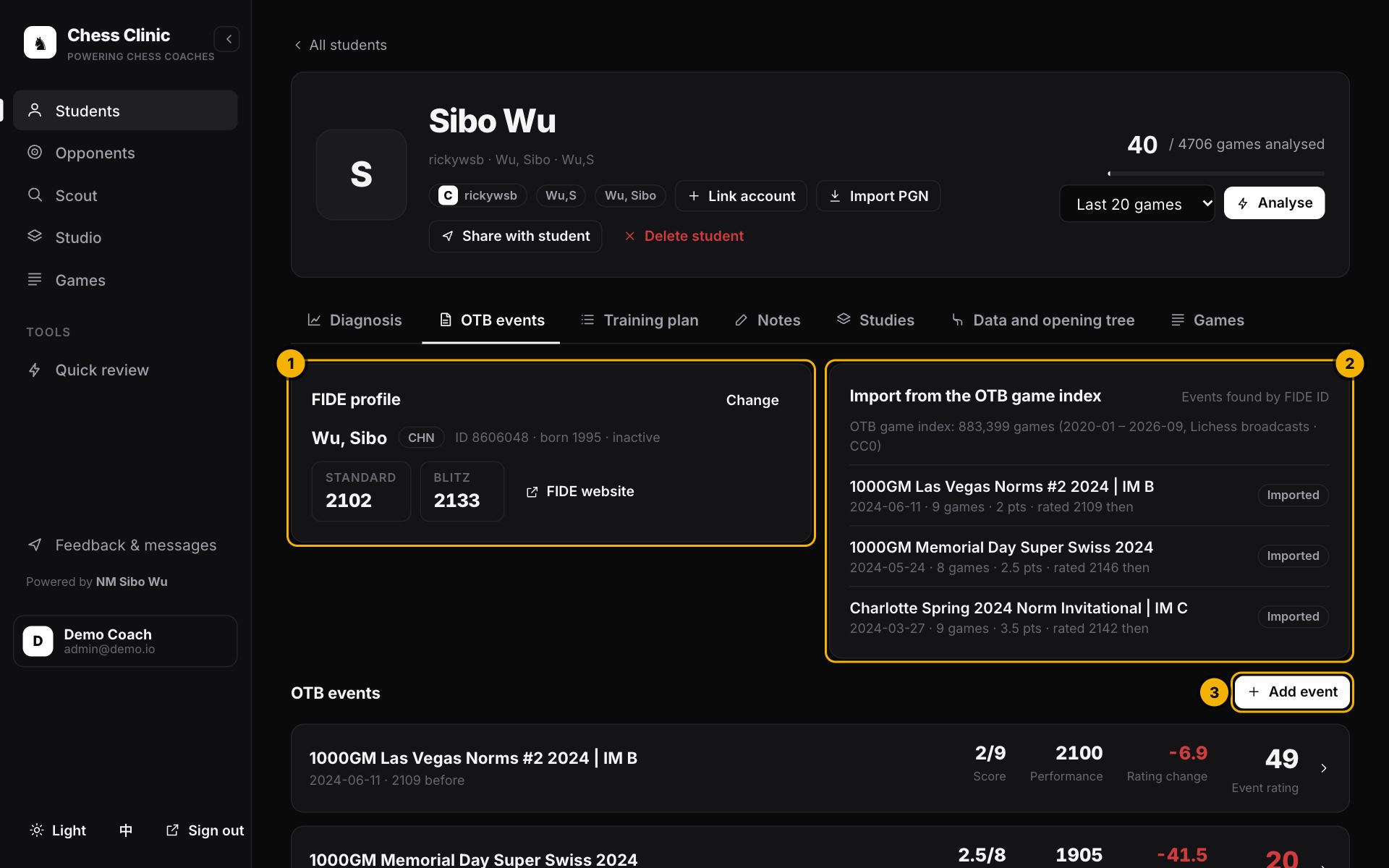
Once a FIDE ID is linked, the player's events are found among 880,000 broadcast over-the-board games and imported in one click. Each event gets its score, performance rating, rating change and a 0–100 event rating.
1FIDE profile: ratings and a link to the FIDE website.
2Events found by FIDE ID; click to import.
3Add an event that wasn't broadcast by hand.
7Games and AI review
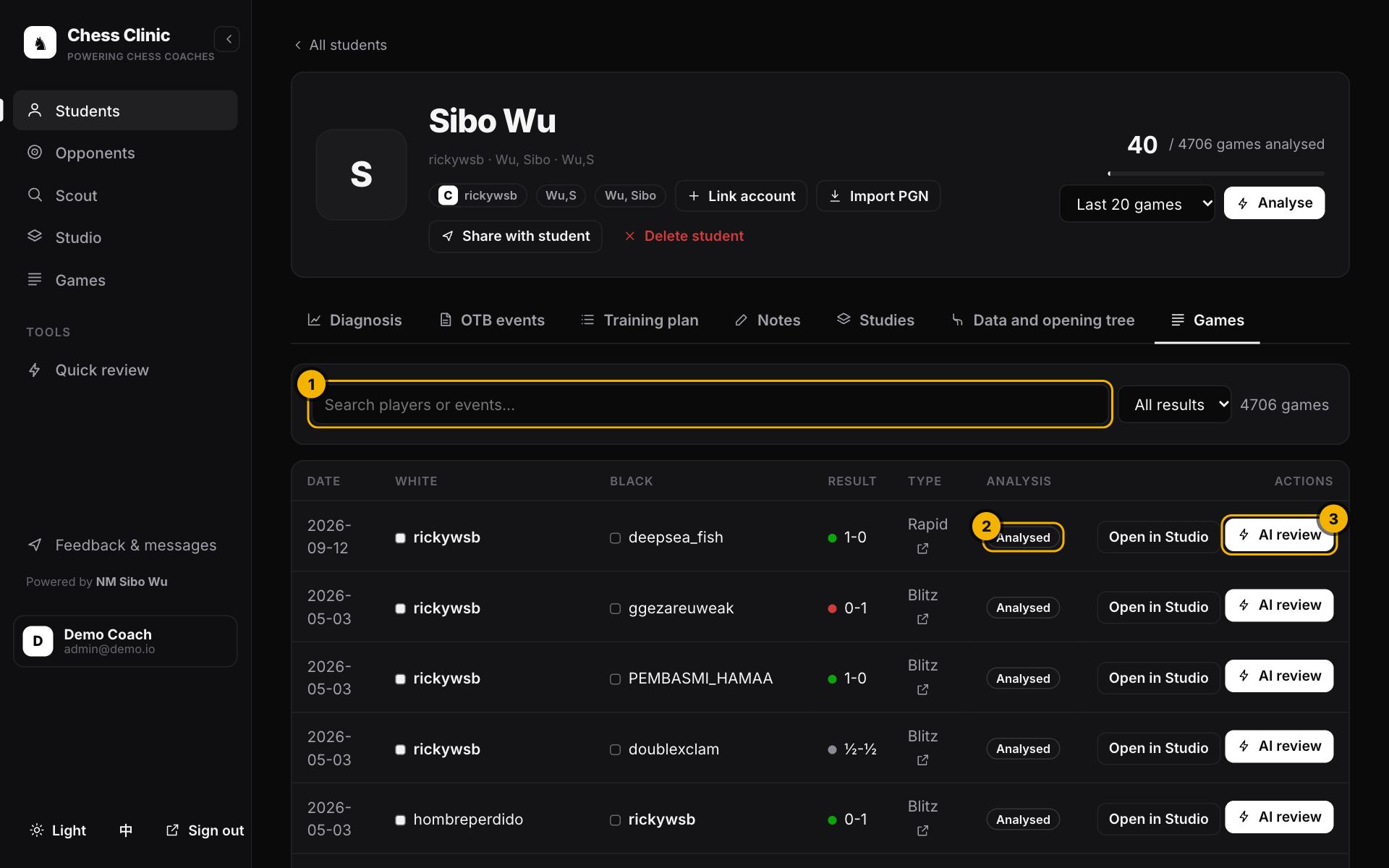
Games lists every game, searchable by player or event and filterable by result. Analysed games can get an AI review: each key mistake is explained as why it's wrong, what it cost and what to play, with master games for reference.
1Search and filter.
2Analysis status.
3AI review creates a review chapter with explanations; Open in Studio next to it goes straight to the analysis board.
8Share with the student
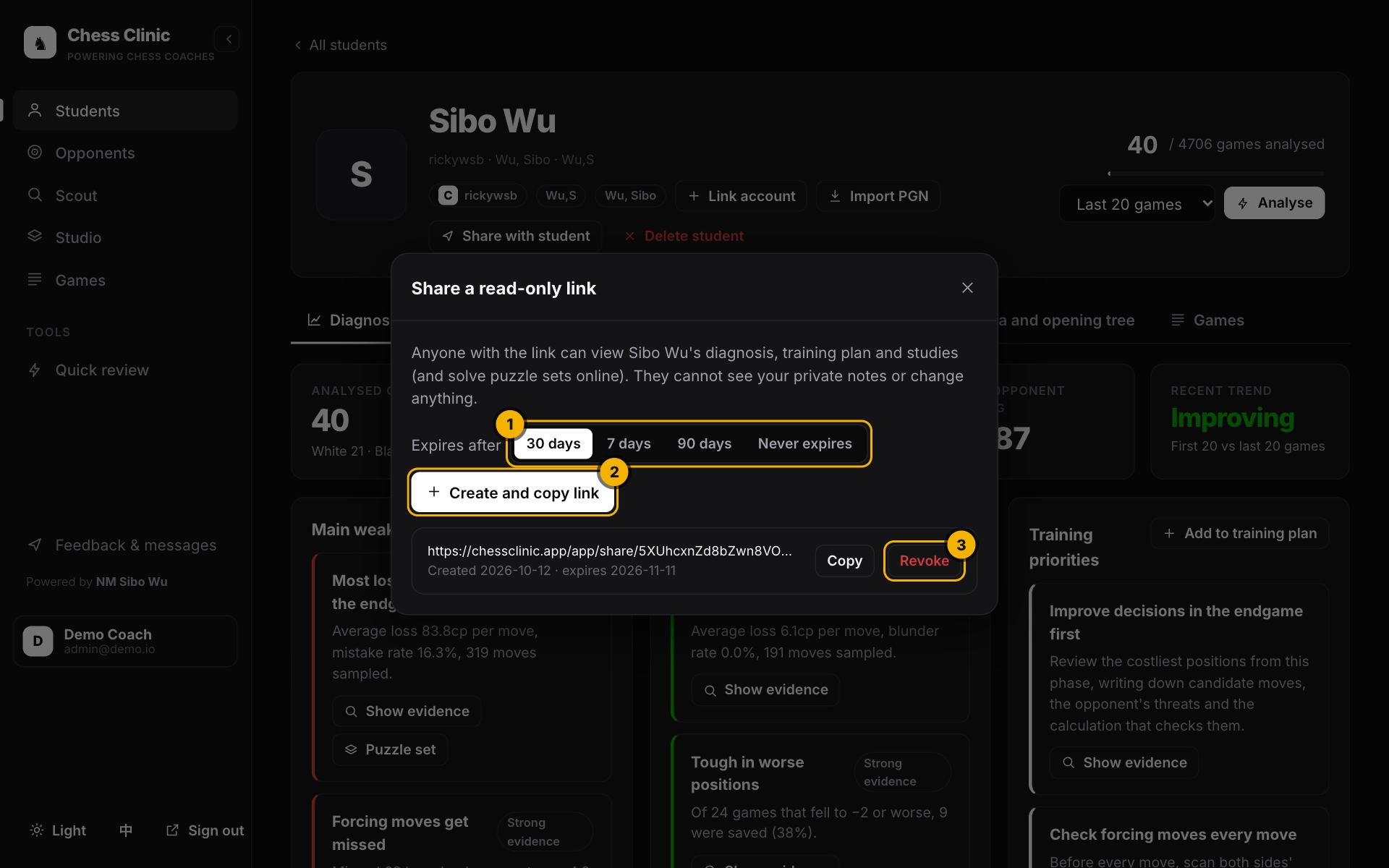
Click Share with student at the top of the profile to create a read-only link for the student or their parents. They see the diagnosis, training plan and studies (and can solve puzzle sets online), but never your private notes, and they can't change anything.
1How long the link works: 7, 30 or 90 days, or forever.
2Create the link and copy it.
3Revoke it at any time; the link stops working immediately.
Chapter 3
Preparing for an opponent
Enter an opponent's FIDE ID or Chess.com / Lichess username and their online and over-the-board games become one profile. The night before the game, one click makes a prep sheet: how they play, where they are weaker than players of their level, which line to aim for and which to avoid, with a few reference games.
1Scout the opponent
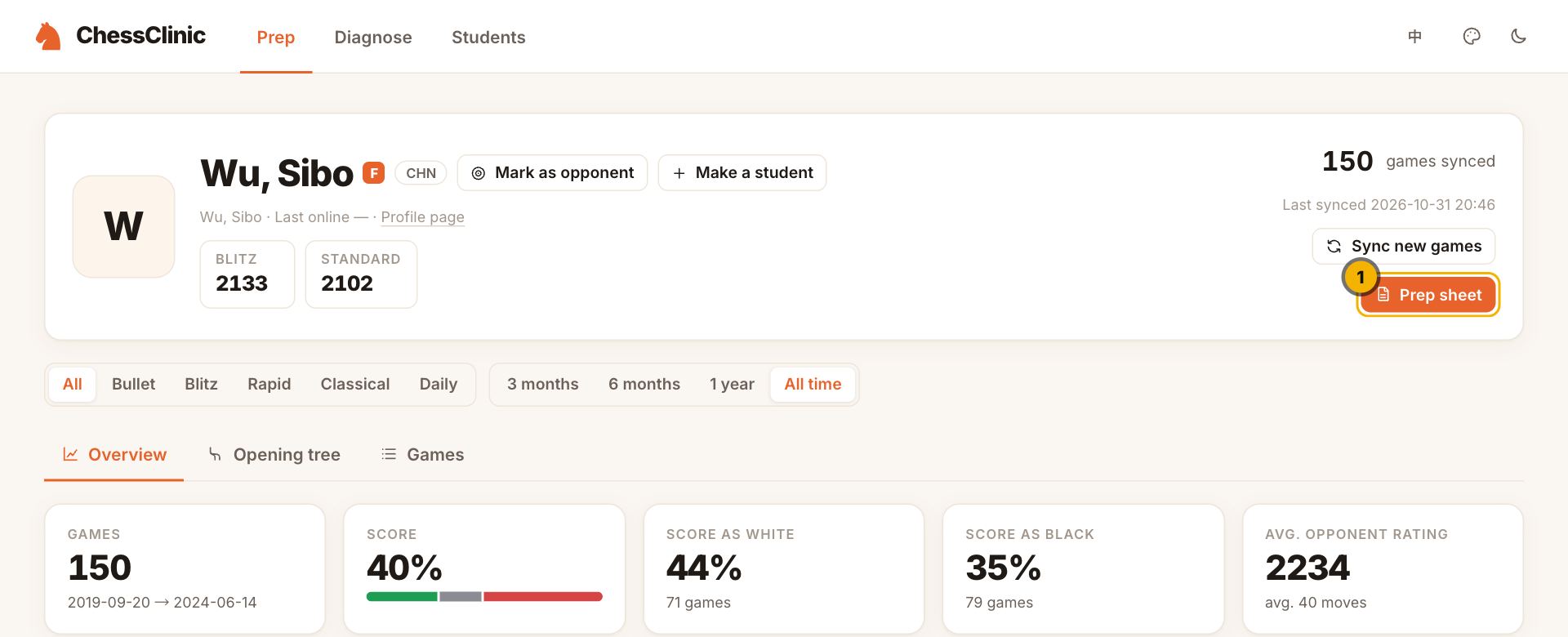
Search for the opponent under Prep; once their games are synced you see their results, opening tree and games. Scouting by FIDE ID finds their over-the-board games in the broadcast index.
1Prep sheet: their style, weaknesses and your opening plan on one page.
2Pick a colour and time controls
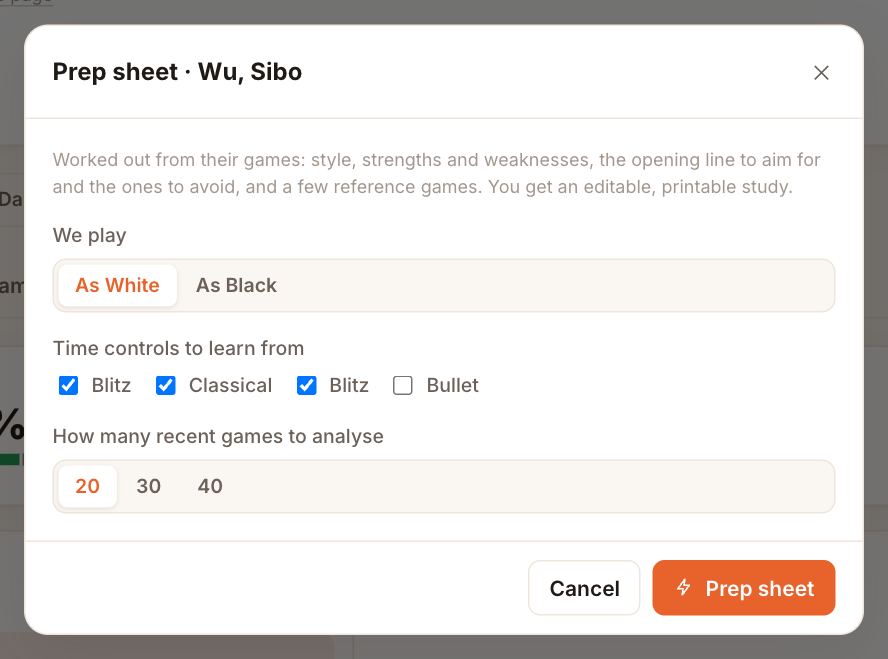
Choose whether you have White or Black and which time controls to learn from. Their recent classical and rapid games are analysed first (games analysed before cost nothing); bullet is left out by default, since time pressure inflates errors.
3Read the prep sheet
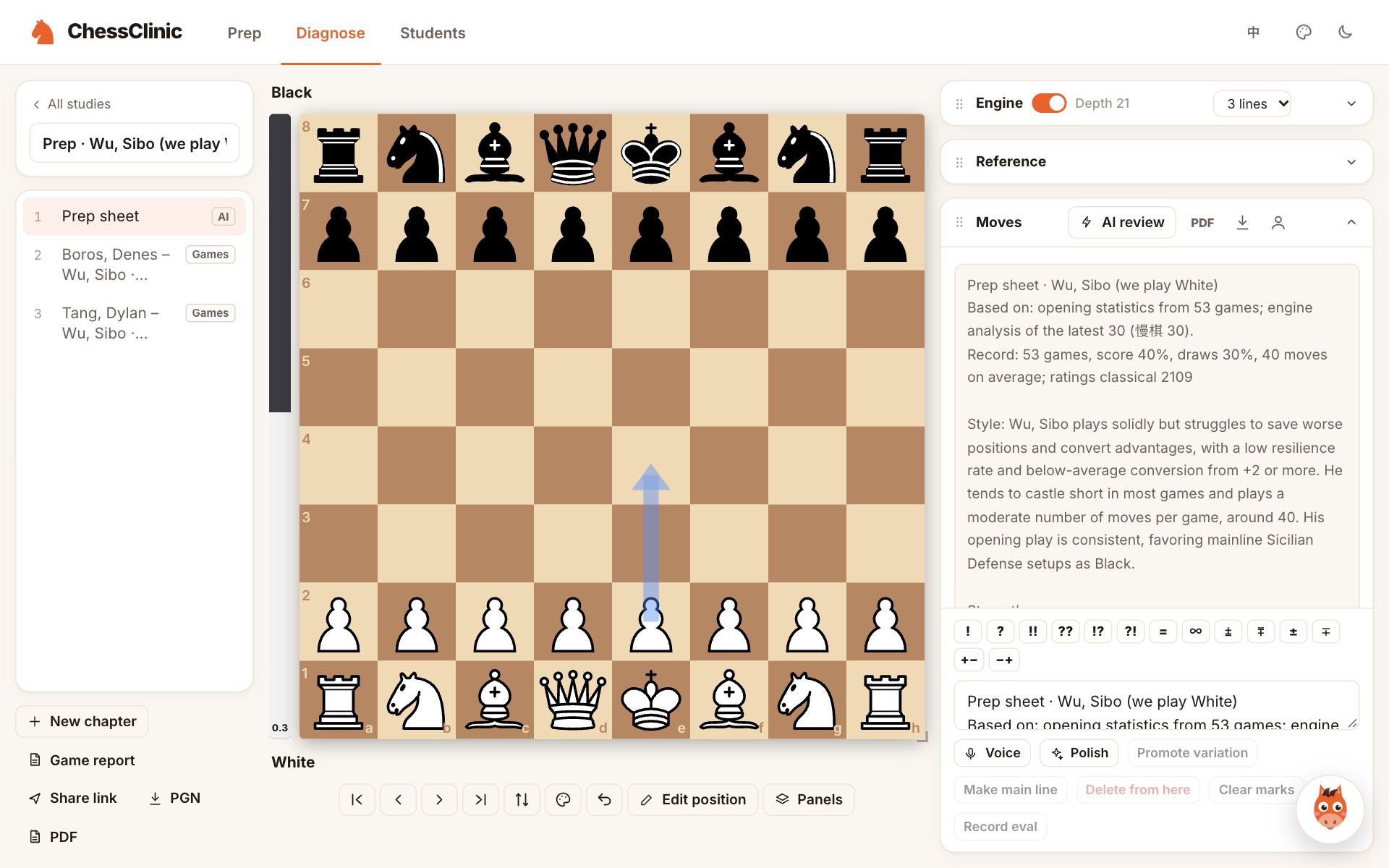
The result is a study: the first chapter is the sheet, with the opening plan as its main line and, at each move, how often they play it and how we score; the next chapters are reference games they lost in that line. Strengths and weaknesses against same-rated players appear only when the sample is large enough. Edit it, print it to PDF, or ask Knighty about it.
Lines are chosen by results in their games, and lines with few games are pulled toward 50%, so one or two lucky results don't steer the plan.
Chapter 4
Knighty, the AI assistant
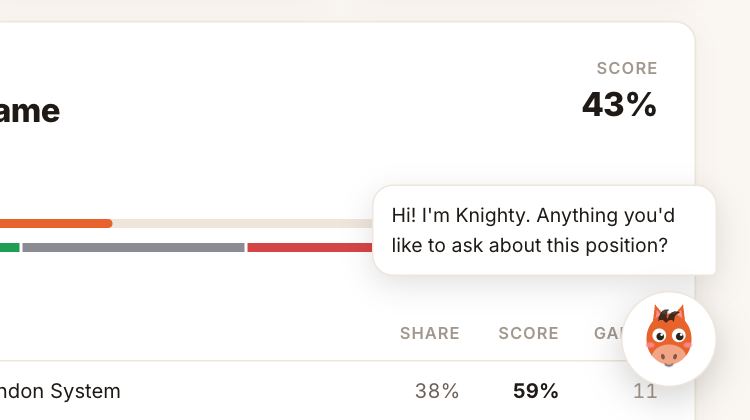
Once you are signed in, Knighty sits in the corner of every page. It knows what you are looking at: a Studio position, a student or an opponent. Before answering it checks the engine, the opening explorer and your own data (diagnoses, games, notes, studies), and every move it names is checked. Ask in Chinese or English; 2 credits per question; conversations are saved.
1Always at hand
Click Knighty to open the chat, click again to close it. Drag it anywhere on the page so it never covers a button; a small dot appears when an answer arrives while it is closed.
2Ask about students and opponents
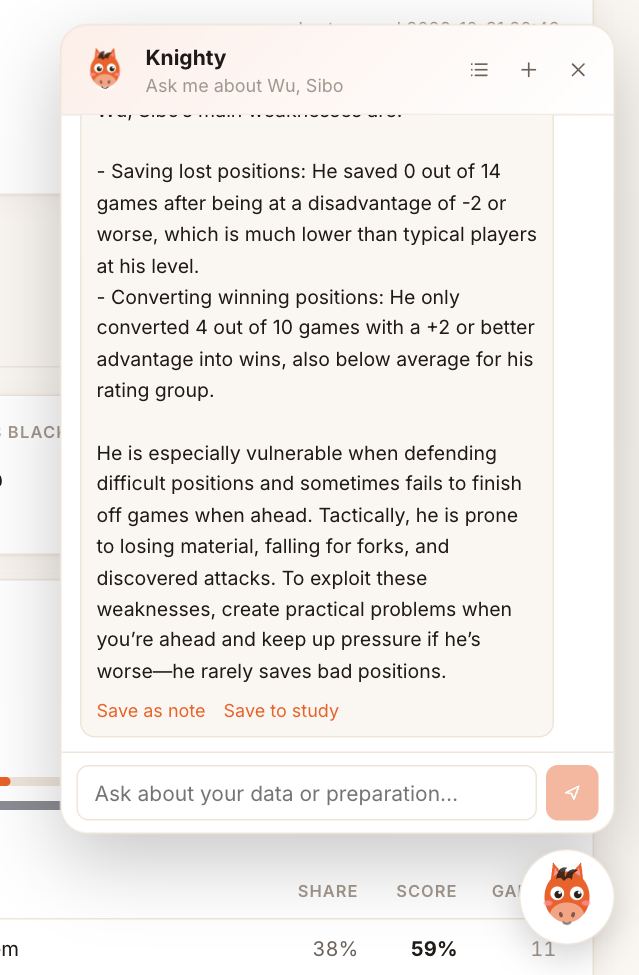
On a student's or an opponent's page Knighty suggests questions, or type your own, such as "What are his weaknesses?" or "Prepare me for him; I have White". It reads that person's diagnosis and games, and every number comes with its sample size.
3Ask about a Studio position
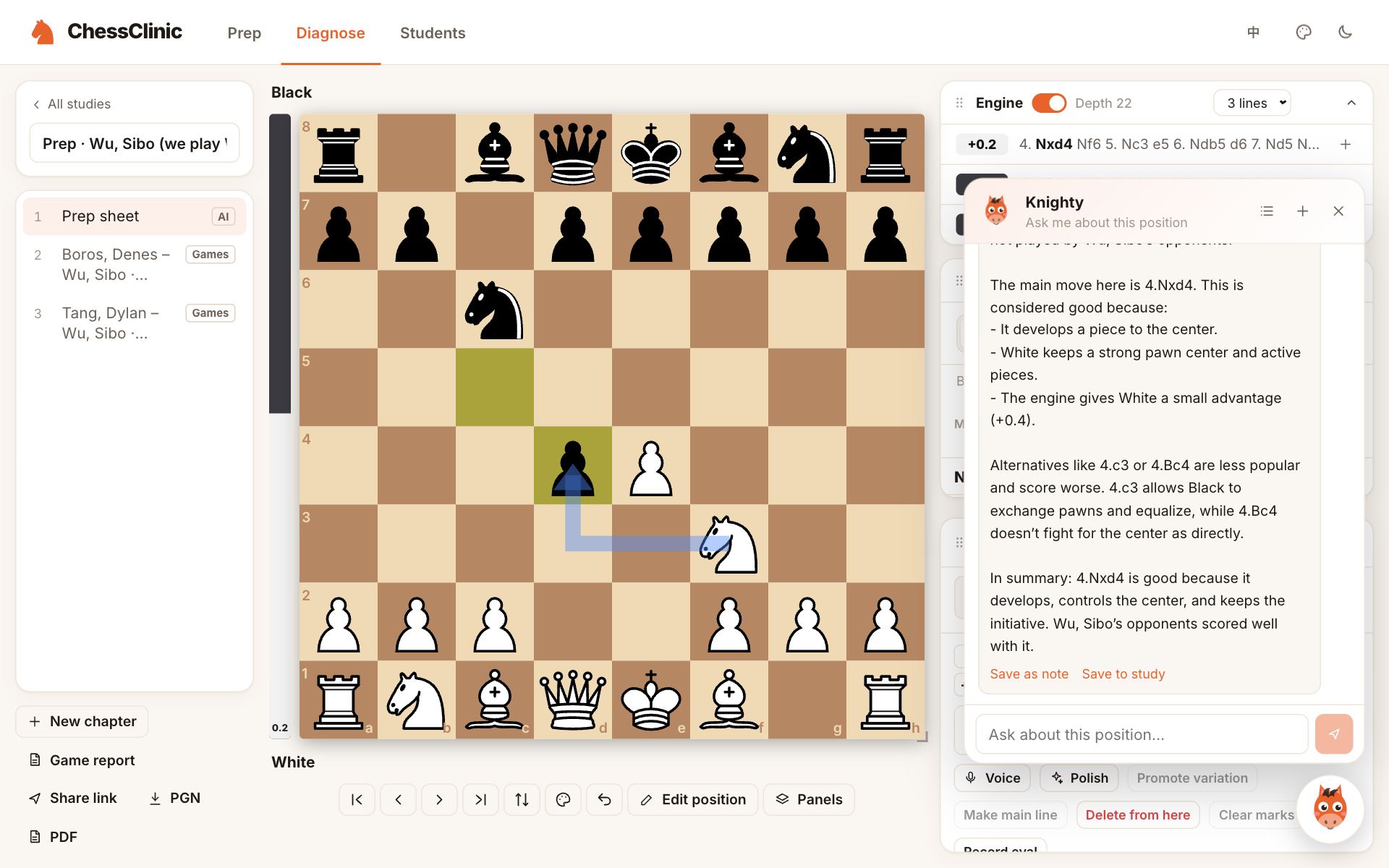
Go to any move in a study and ask "Why is this move good or bad?" or "What are both sides' plans?". Knighty calls the engine, opening statistics and, for a study about an opponent, what that player chose in this position.
4Keep an answer
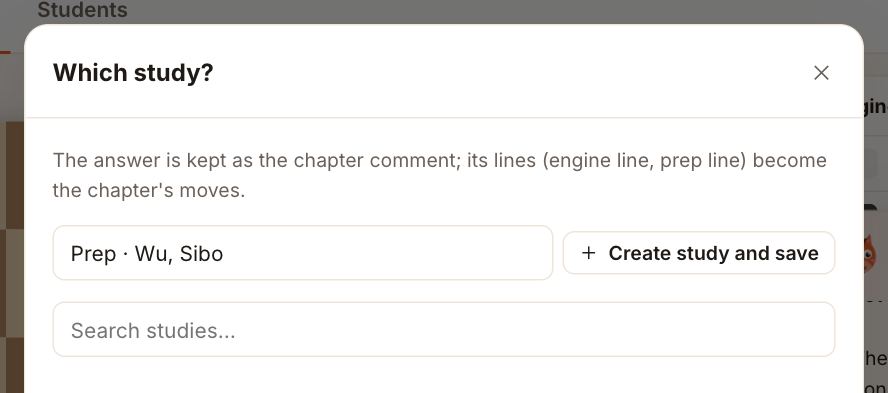
Under every answer: Save as note (to that student's or opponent's notes) or Save to study (an existing study or a new one). In a study, the answer is kept as the chapter comment and the lines it names become the chapter's moves. The list icon at the top of the chat brings back earlier conversations.
Ready to try it?
New accounts are approved by an admin, usually within a day.